 Auto BeatFlow
Creating Game Soundtracks with AI: A Practical Guide
Score your game with AI: seamless loops with the overlap-cut technique, biome-by-biome prompt blueprints, vertical stem layering for dynamic music, and mixing tips for Unity, Unreal and Godot.
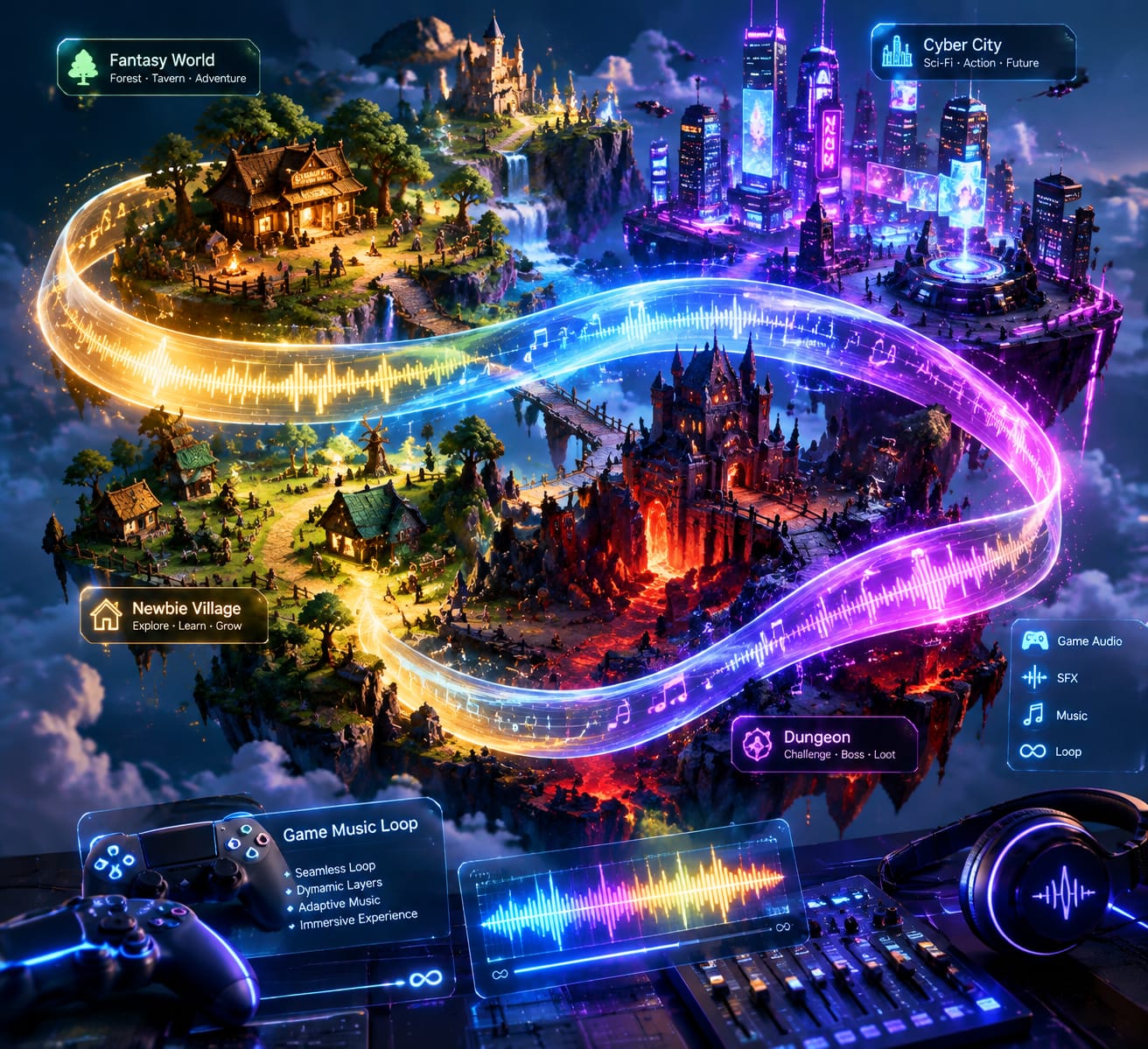
In game development, music is fundamentally non-linear. Unlike a film score or pop song that plays once from start to finish, game audio must seamlessly loop for twenty minutes during exploration, respond dynamically to combat encounters, and reinforce environmental worldbuilding without fatiguing the player's ears.
For indie studios, solo developers, and game jam participants, commissioning hours of custom orchestral or electronic music often breaks the production budget.
Generative platforms like Auto BeatFlow make it possible to score entire game worlds on an indie timeline. However, game audio requires a fundamentally different technical workflow than standard music generation.
Here is how to design, prompt, loop, and integrate game soundtracks that feel dynamic, immersive, and native to your game engine.
1. The Art of the Infinite Loop: Eliminating Seams
The most glaring flaw in amateur game audio is a noticeable audio restart. A track that fades out abruptly or restarts with a sudden percussive crash pulls the player completely out of immersion.
Prompting for Circular Harmonies
Standard pop tracks rely on linear cadences: they introduce a theme, build to a climax, and resolve cleanly to a final resting chord. Environmental game cues, by contrast, require circular harmonic motion: progressions that naturally lead back to their starting chord without a jarring tonal leap.
- Anti-Pattern (Avoid): Prompts containing linear song markers like
[Intro],[Drop],[Outro], or terms like "epic grand finale ending". - Best Practice (Use): Specify sustained, circular pacing:
"Seamless looping ambient background score, circular chord progression, steady energy state, no abrupt stops, no sudden dynamic bursts, uniform volume profile, gentle decaying tail."
The "Overlap-Cut" Loop Technique (DAW Setup)
Even when an AI track has consistent energy, the rendered WAV file will have silence at the start and a decaying reverb tail at the end. To convert any linear generation into a mathematically seamless loop:
Step 1: Raw File (Length: 2:00)
|------------------ Half A ------------------|------------------ Half B ------------------| [Reverb Tail]

Step 2: Slice Exactly on a Musical Measure Boundary at the 1:00 Mark

Step 3: Swap the Halves and Align
|------------------ Half B ------------------|------------------ Half A ------------------|
^ (Apply 2-bar Equal-Power Crossfade Here)- Generate a continuous two-minute track inside the Auto BeatFlow generator at an explicit BPM (e.g., 90 BPM).
- Open the file in an audio editor or DAW (Reaper, Audacity, or Ableton).
- Cut the clip precisely on a bar line at the halfway mark (1:00).
- Move Half B to the beginning of the timeline and place Half A directly after it.
- Apply a short equal-power crossfade across the cut seam in the center.
Because the start and end of this newly arranged file were originally adjacent in the middle of the performance, the track will now loop inside Unity, Unreal Engine, or Godot without a single audible click, pop, or volume dip.
2. Worldbuilding by Biome: Tested Audio Blueprints
A game's sonic palette must anchor the player inside the physical environment. Tailor your prompts to specific biomes, camera perspectives, and pacing:
| Game Environment | Acoustic Elements | Tempo & Mood | Tested Prompt Architecture |
|---|---|---|---|
| Overworld / Open Plains | Fingerpicked acoustic guitar, soft wooden flute, ambient strings, organic field textures | 75–85 BPM, peaceful, curious | "Open-world exploration score, fingerpicked acoustic guitar, gentle wooden flute melody, distant chamber strings, warm natural field acoustics, 78 BPM, peaceful adventure aesthetic" |
| Ancient Crypt / Dungeon | Dissonant bowed waterphone, sub-bass drone, sparse metallic percussion, stone echoes | 60–70 BPM, tense, claustrophobic | "Dark dungeon ambient soundbed, bowed dissonant strings, low sub-bass drone, subtle echoing water droplets, cavernous plate reverb, cold atmospheric tension, zero rhythmic percussion" |
| Starting Hub / Safe Tavern | Celtic lute, accordion, rustic bodhrán drum, warm acoustic upright bass | 100–110 BPM, comforting, rustic | "Rustic fantasy tavern music, acoustic lute strums, warm accordion melody, light bodhrán rhythm, upright acoustic bass, friendly village atmosphere, 105 BPM, cozy wooden room acoustics" |
| Cyberpunk Alley / Hub | Analog saw bass, Roland TB-303 arpeggio, vinyl lo-fi beats, rain textures |
3. Dynamic Audio: Implementing Vertical Layering (Stems)
Modern games rarely play a single stereo file at full volume during an entire mission. They use interactive audio architecture, dynamically introducing or muting musical layers based on in-game parameters (e.g., danger level, remaining health, or proximity to enemies).
You can easily simulate this dynamic interaction using AI generation:
Game Engine Mixer (FMOD / Wwise / Unity Audio):
[Stem 1: Ambient Base Bed]   --------------------> Always playing (Volume: 100%)
[Stem 2: Rhythmic Percussion] --------------------> Triggered when enemies enter alert zone (Fade in)
[Stem 3: Aggressive Lead Layer] ------------------> Triggered during active combat (Fade in)
The Generation Workflow
- Lock Your Seed and Tempo: In the Auto BeatFlow workspace, lock in your master tempo (e.g., exactly 110 BPM) and root key signature.
- Generate Layer 1 (Base Bed): Prompt for the ambient foundation:
"Sparse exploration underscore, ambient synth pads, solo cello, 110 BPM, beatless, D minor."
- Generate Layer 2 (Action Layer): Use the same tempo and key parameters, but prompt for percussive drive:
"Cinematic combat percussion, taiko drums, driving electronic hi-hat groove, 110 BPM, no melodic synths, D minor."
- Implement in Engine: Import both synced WAV files into your game engine’s audio mixer. Play both tracks simultaneously from timestamp 00:00, but set the volume of the action layer to zero. When combat triggers, simply interpolate the action layer volume up to 100% over a 1.5-second curve.
4. Mixing for Game Engine Performance
Before bundling your audio assets into a build:
- Mono vs. Stereo Placement: Export 2D background music in stereo. For positional in-world audio (such as a radio playing inside a room or a bard in a tavern), convert the file to mono so your game engine can calculate spatial 3D panning without stereo phase cancellation.
- Normalize Master Headroom: Set your background music tracks to peak between -6 dB and -8 dB True Peak. Game audio mixes are notoriously crowded with dialogue, UI clicks, weapon sound effects, and physics collisions; leaving ample headroom prevents master bus distortion during chaotic combat scenes.
- Low-End Management: Apply a high-pass filter at 40 Hz on all exploration audio. This reserves the critical sub-bass range exclusively for tactile sound design impacts like explosions, heavy footsteps, and environmental rumbles.
Bring Your Worlds to Life
A memorable game soundtrack does not require a triple-A orchestra. By understanding circular looping mechanics, crafting biome-specific sonic palettes, and designing modular audio layers, you can score rich, responsive, and cohesive interactive worlds.
Ready to compose and export custom, loop-ready soundtracks for your next game project? Head over to Auto BeatFlow and start building your game's sonic universe today.